
InsightsPulse Report Viewer – User Guide
This guide explains how report viewers can log in, access dashboards, open and maximize reports, manage their profile, update password, hide/show menu, and logout from the InsightsPulse portal.
1. Overview
The InsightsPulse Report Viewer is a secure web application where you can see all BI reports allotted to you by your organization. You can:
- Log in with your credentials and access your dashboard.
- Browse the list of available reports and categories.
- Open reports, filter data, switch tabs and maximize view.
- Bookmark frequently used reports.
- Update your profile and password.
- Check your recent activity and securely logout.
Screenshot: User Portal Home / Dashboard

2. How to Login
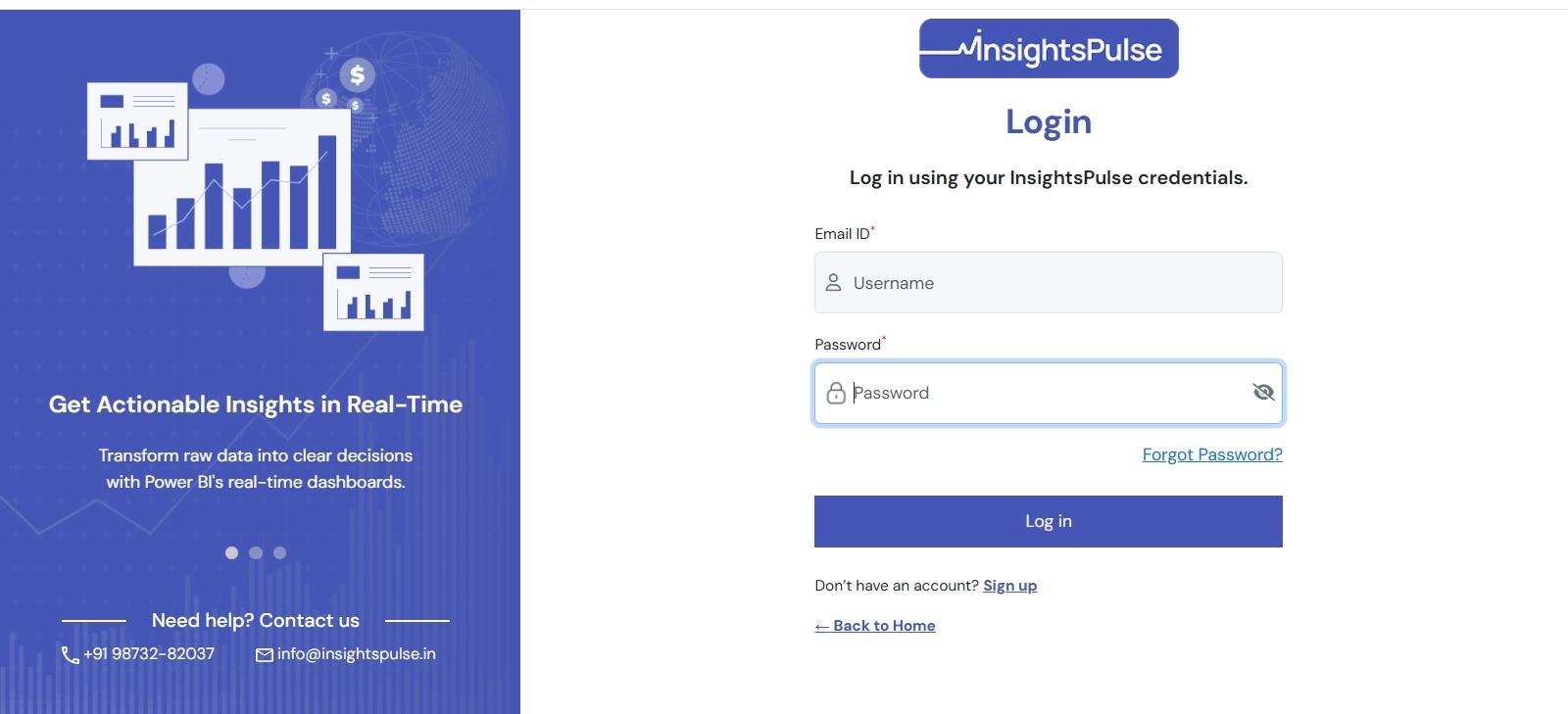
Follow these steps to log in to the InsightsPulse report viewer:
- Open your browser and go to
https://insightspulse.in. - Click on the Login button on the top-right corner.
- Enter your registered Email and Password.
- Click the Sign In / Login button.
- On successful login, you will be redirected to the Dashboard.
If your credentials are incorrect, an error message will be shown on the login screen.
Screenshot: Login Page
3. How to Recover Password (Forgot Password)
If you have forgotten your password, you can reset it using the following steps:
- On the login page, click on the Forgot Password link (if enabled).
- Enter your registered email address.
- Click Send Reset Link / Submit.
- Check your email inbox for a password reset link or OTP.
- Open the link, set your new password and confirm.
- Return to the login page and sign in using the new password.
If you don’t see the reset email, check your spam/junk folder or contact your administrator.
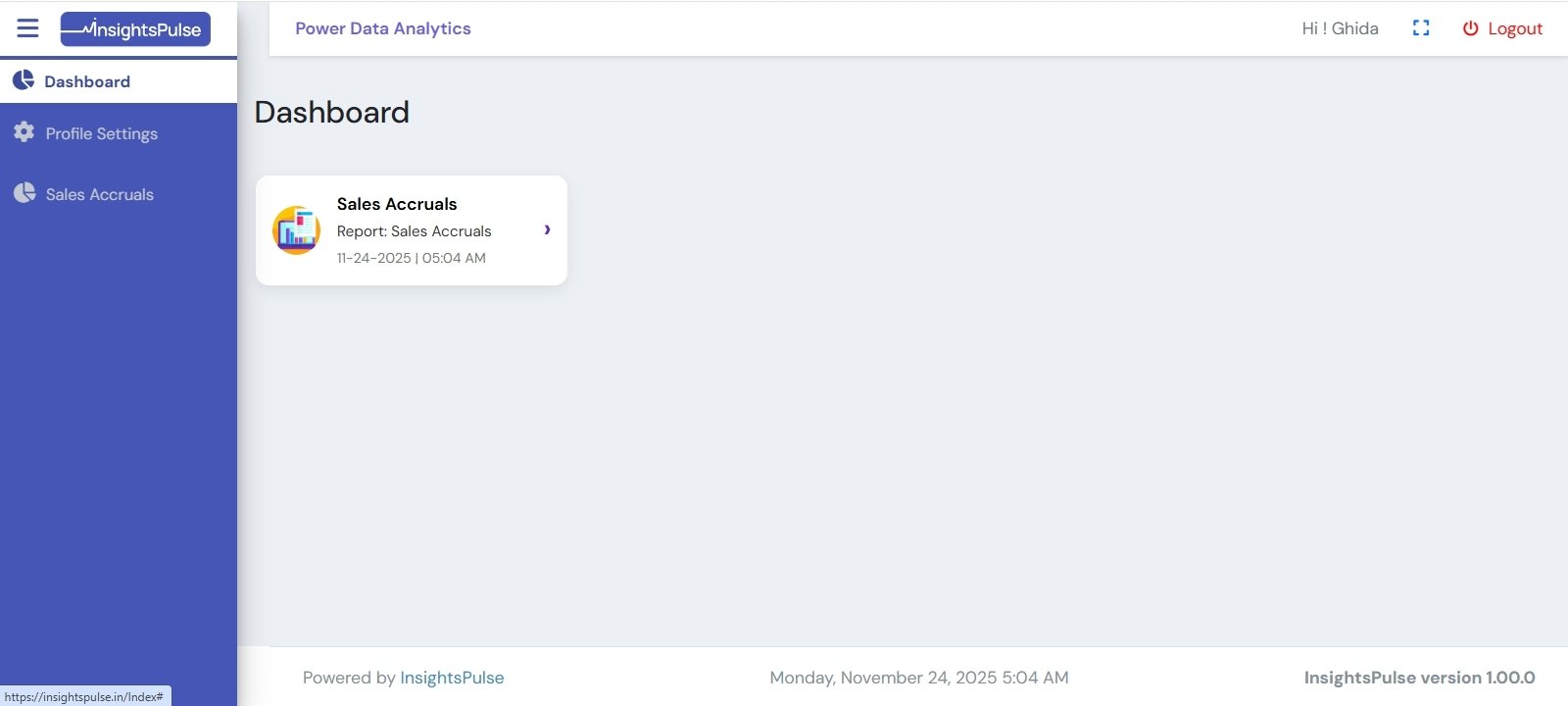
4. How to Access the Dashboard
After login, you are automatically taken to the Dashboard. If you navigate away, you can come back anytime using the Dashboard option in the left menu.
Dashboard provides:
- A list of your main report categories or workspaces.
- Recently viewed or favourite reports (if configured).
- Quick links to open reports or jump to the full reports list.
Screenshot: Dashboard View
5. How to View the Reports List
To see all reports assigned to you:
- Click on the appropriate menu item in the left sidebar (for example, Sales Accruals or any report group).
- Inside that section, you will see one or more report tiles or links.
- You can use search or filters (if available) to locate a specific report.
Each report will have a name and sometimes a short description. Clicking on the report will open the full report in the viewer.
Screenshot: Example Report List / Menu
6. How to View & Maximize the Report
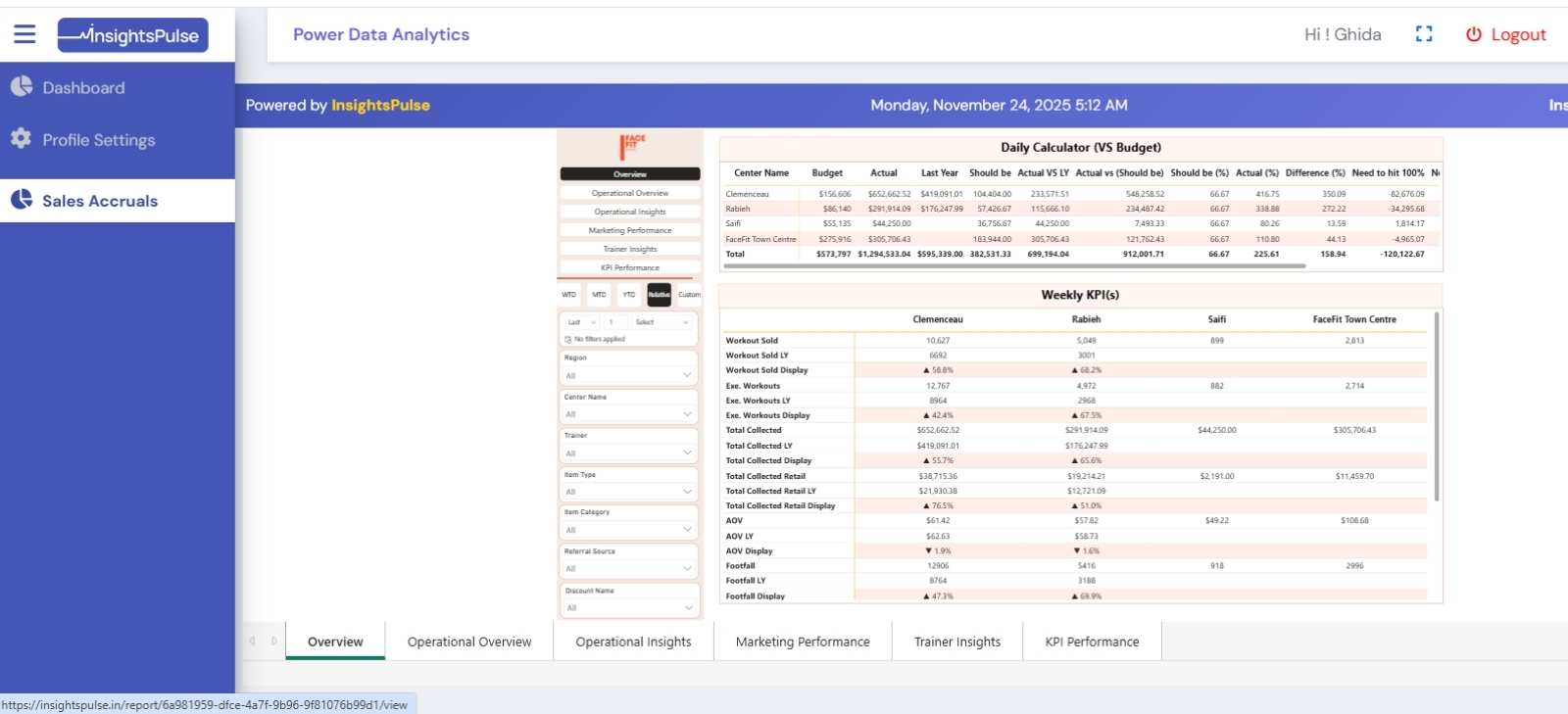
After you click on a report from the list, it opens inside the Report Viewer. This is an embedded BI report (Power BI / Tableau etc.) as seen in your screenshot.
6.1 View the report
- Select the desired report from the left menu or report list.
- Wait for the report to load completely in the center area.
- Use any available tabs at the bottom (e.g., Overview, Operational Overview, etc.) to switch between pages.
- Use filters on the left/right panel inside the report to narrow down data.
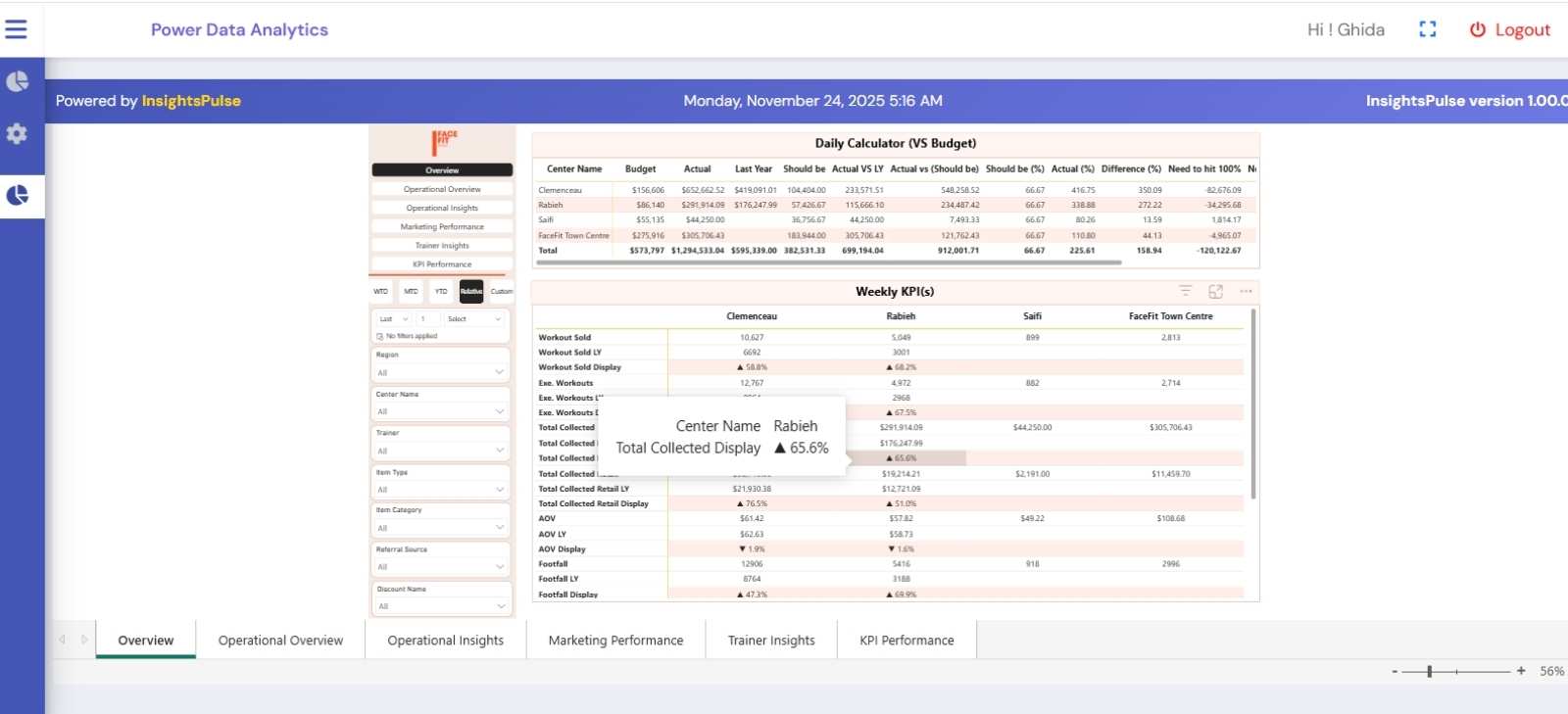
6.2 Maximize the screen
To focus on the report only and hide browser distractions:
- Look for the full-screen / maximize icon near the top-right of the report viewer or inside the BI toolbar.
- Click the icon – the report will switch to full-screen mode.
- To exit full-screen, press Esc or click the full-screen icon again.
Screenshot: Report Viewer (Embedded Report)
7. How to Hide / Access the Menu (Sidebar)
Sometimes you may want more space for the report and less space for the left sidebar menu. You can easily hide or show the menu using the toggle:
- Locate the menu icon (three horizontal lines) at the top-left, next to the InsightsPulse logo.
- Click the icon to collapse the sidebar. Only icons may remain visible.
- Click the icon again to expand and bring back the full menu text.
This helps you see more of the report, especially on smaller screens.
10. How to Update Profile
You can update your basic profile details using the Profile Settings section.
- Click on Profile Settings in the left sidebar menu.
-
On the profile page, edit allowed fields such as:
- Full name
- Mobile number
- Profile photo (if supported)
- Click the Save button to store your changes.
Some details like email or organization may be fixed and controlled by your administrator.
11. How to Update Password
You can change your password from the Settings or Change Password area.
- Open the Profile Settings or Settings page (depending on your layout).
- Click on the Change Password option.
- Enter your current password.
- Enter the new password and confirm it in the Confirm Password field.
- Click Save / Update Password.
- Next time you log in, use the new password.
If you forget the current password, use the Forgot Password process instead.
12. How to Logout
For security reasons, always log out after using the portal—especially on shared systems.
- Locate the Logout button on the top-right (e.g., near Hi! <User>) or in the sidebar.
- Click Logout.
- You will be redirected to the login page and your session will be closed.
If you simply close the browser tab without logging out, your session may remain active for some time, depending on your organization's security settings.